XreplyAI MCP Server: What It Is and How It Works
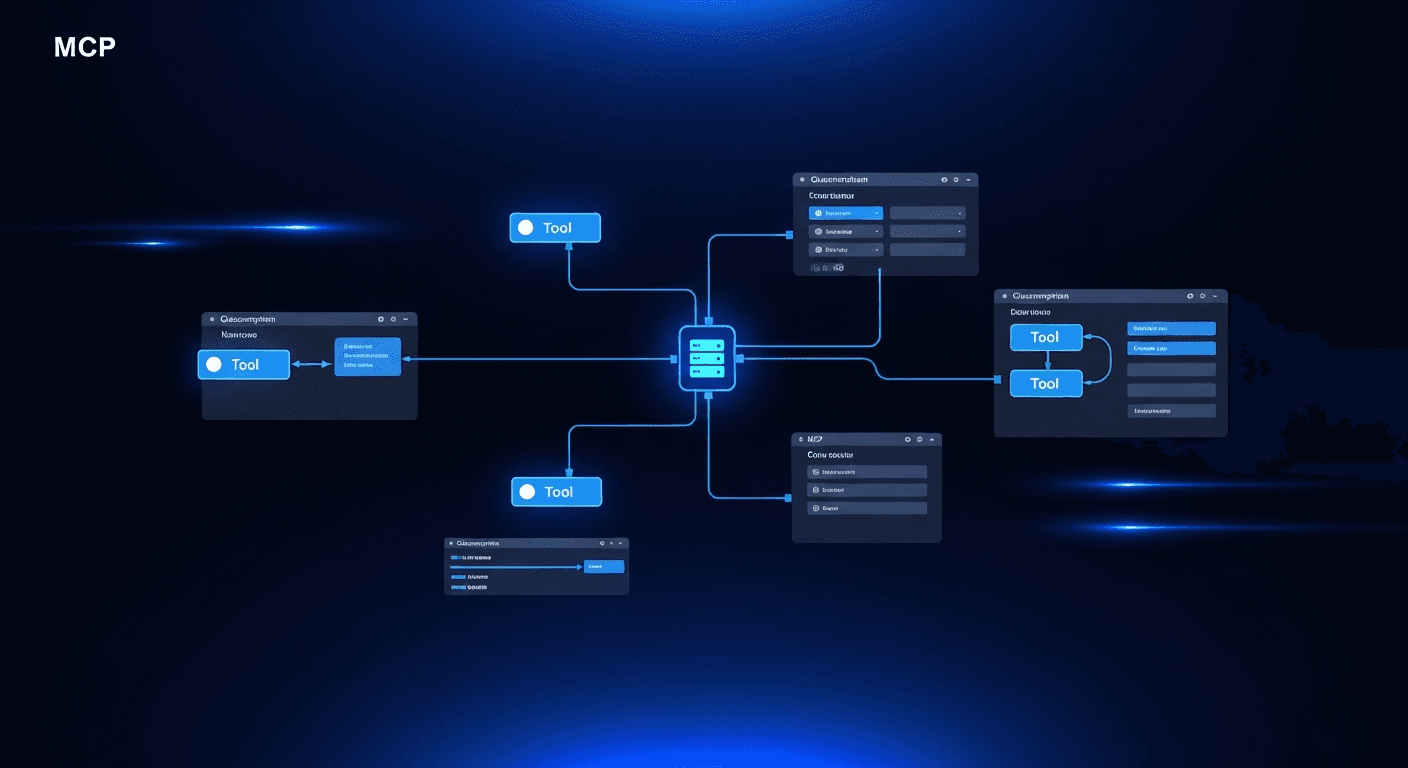
If you spend your days inside Claude Code, Cursor, or Windsurf, you already know how much context switching costs you. You are deep in a codebase, you have a thought worth posting, and suddenly you are tabbing out, opening a browser, writing a tweet, and losing your train of thought. The XreplyAI MCP server fixes that.
The @xreplyai/mcp package exposes 49 tools that let any MCP-compatible client generate posts in your trained voice, browse a library of viral tweets, manage a post queue, and publish directly to X, all without leaving your editor. It works with Claude Desktop, Claude Code, Cursor, Windsurf, and OpenClaw.
This post walks through every tool group, explains what each one does, and shows the workflows that make it worth setting up.
What Is an MCP Server and Why Does It Matter Here?
MCP stands for Model Context Protocol. It is an open standard that lets AI coding assistants call external tools the same way they call file-system operations or shell commands. When you add an MCP server to Claude Code or Cursor, those tools become first-class citizens in your AI session: you can ask the assistant to use them in natural language, chain them with other operations, or invoke them explicitly.
For content creation, this changes the workflow entirely. Instead of context-switching to a browser or a separate app, you instruct your AI assistant to generate a post, review it, and schedule it, all inside the conversation you are already having. The XreplyAI MCP server makes that possible for X/Twitter and LinkedIn content.
The package is published as @xreplyai/mcp. Once installed and configured in your MCP client, all 49 tools are available. The server authenticates against your XreplyAI account, uses your trained voice profile, and respects your plan tier's quotas. Setup takes under five minutes.
Discovery: Browse Viral Tweets Before You Write
The xreply_viral_library tool gives you access to a curated library of tweets that have crossed 100 likes. You can filter by niche, keyword, and time range. This is not a search engine scrape: it is a structured dataset you can query programmatically from inside your editor.
The practical use is inspiration at scale. Before running a batch generation, you can ask your AI assistant to pull the top-performing tweets in your niche from the past week, identify patterns in hooks and structures, and then feed that context into the generation step. You end up with posts that are grounded in what is actually resonating, not just what sounds good in a vacuum.
Filtering by keyword is especially useful for topical content. If you are building in public around a specific technology, you can pull viral tweets on that topic, see how the community frames the conversation, and generate replies or original posts that fit naturally into ongoing threads.
Generation: Single Posts, Batch Posts, and Voice Matching
There are two generation tools. xreply_posts_generate creates a single post in your voice for either X or LinkedIn. xreply_posts_generate_batch generates between 1 and 9 posts at once, organized by category: personalized (matched to your voice profile), trending (based on current topics), or viral (modeled on high-performing formats).
The voice profile is the key differentiator. XreplyAI trains a voice model on your past tweets, so generated posts sound like you wrote them, not like generic AI output. You can check your voice profile status at any time with xreply_voice_status. If the profile needs updating, you can trigger a retrain from the dashboard.
For LinkedIn users, the same generation tools handle cross-posting with platform-appropriate formatting. X and LinkedIn have different norms around length, structure, and tone. The generation tools account for that: you are not just repurposing a tweet with line breaks added.
Before generating, you can use xreply_preferences_get and xreply_preferences_set to adjust tone, emoji usage, and post structure. These settings persist across sessions. Pro and Team users can also call xreply_rules_list to see custom writing rules that constrain or guide generation output.
Post Management: Draft, Edit, and Organize Your Queue
Once a post is generated, you have four management tools. xreply_posts_create saves a draft to your queue. xreply_posts_list returns your current queue split by status: drafts, scheduled posts, and recently published. xreply_posts_edit lets you change the post body or adjust the scheduled time. xreply_posts_delete removes a post from the queue.
These tools make it possible to build a content pipeline entirely inside your editor. A typical session might look like: batch-generate seven posts for the week, review them one by one, save the ones you want to keep, edit any that need adjustment, and delete the rest. The whole process stays in the AI conversation, no browser tabs required.
The list tool is particularly useful for accountability. If you ask your assistant to show you your upcoming queue first thing each morning, you get an immediate view of what is scheduled and whether any posts need attention before they go out.
Publishing: Schedule to X and LinkedIn From Your Editor
The xreply_posts_publish tool handles the final step. You can publish a post immediately or schedule it for a specific time. This is a direct publish to X/Twitter, not a buffer that requires a separate confirmation step. When you call the tool with a timestamp, the post is queued at the platform level.
Combined with the management tools, this creates a complete editorial workflow. You can generate, review, schedule, and confirm all in one conversation. If you change your mind before the scheduled time, use xreply_posts_edit to update the timestamp or xreply_posts_delete to pull the post entirely.
For accounts with active posting quotas, xreply_billing_status lets you check your current tier and remaining quota before running a large batch. This prevents surprises when you are close to your monthly limit.
OpenClaw: Using XreplyAI MCP From WhatsApp, Telegram, and Discord
OpenClaw is a self-hosted AI gateway that connects chat applications to AI agents through a system called Skills. XreplyAI ships an OpenClaw skill that bridges to the MCP server via a component called mcporter. The result: you can trigger any of the 13 MCP tools from a WhatsApp message, a Telegram bot, or a Discord command.
This matters for creators who do not spend their day in a code editor. If your primary AI interface is a chat app, OpenClaw lets you keep the same XreplyAI workflow without switching to Claude Code or Cursor. You ask the bot to generate a post, it calls the MCP tools under the hood, and returns the result to your chat thread.
Self-hosting OpenClaw means your account credentials and content never pass through a third-party relay. The gateway runs on your own infrastructure, and the XreplyAI skill connects to your account directly. For teams with strict data handling requirements, this is a meaningful difference from cloud-only integrations.
The XreplyAI MCP server closes the gap between building and posting. Forty-nine tools cover the full content pipeline: discover what is working, generate posts in your voice, manage your queue, and publish on schedule, all from the AI environment you already use. For developers and founders who live in Claude Code, Cursor, or Windsurf, this is the most frictionless path to a consistent posting cadence.
If you want to try it, the XreplyAI MCP server page has the install command and the full tool list. Connect your account, install the MCP server, and run your first batch generation inside your editor. The voice profile setup takes a few minutes, and after that, your AI assistant has everything it needs to post as you.
FAQ
- How do I install the XreplyAI MCP server?
- Install it with <code>npm install -g @xreplyai/mcp</code>, then add the server configuration to your MCP client settings file. Claude Code, Claude Desktop, Cursor, and Windsurf all support MCP server configuration via a JSON settings file. Once added, restart your client and the 49 tools will be available in your next session.
- Does the XreplyAI MCP server work with Claude Code?
- Yes. Claude Code supports MCP servers natively. Add the <code>@xreplyai/mcp</code> configuration to your <code>.claude/mcp.json</code> or the global MCP settings file, and Claude Code will load the tools on startup. You can then ask Claude to generate posts, check your queue, or publish content directly in your terminal session.
- What is the difference between xreply_posts_generate and xreply_posts_generate_batch?
- <code>xreply_posts_generate</code> creates a single post for a specific platform (X or LinkedIn). <code>xreply_posts_generate_batch</code> creates 1 to 9 posts at once, grouped by category: personalized content matched to your voice profile, trending content based on current topics, or viral content modeled on high-performing tweet formats. Use batch generation when planning a week of content.
- Do I need a Pro plan to use the XreplyAI MCP server?
- The MCP server is available on all paid XreplyAI plans. Custom writing rules via <code>xreply_rules_list</code> are limited to Pro and Team users. Generation runs on XreplyAI's managed key pool, so there is nothing to configure before you start. You can check your current tier and quota at any time by calling <code>xreply_billing_status</code> from within your MCP session.
- Can I use the XreplyAI MCP server from a chat app like WhatsApp or Telegram?
- Yes, through OpenClaw. OpenClaw is a self-hosted AI gateway with an XreplyAI skill that connects chat apps to the MCP server via mcporter. Once configured, you can trigger post generation, queue management, and publishing from WhatsApp, Telegram, or Discord without opening a code editor.