XreplyAI + OpenClaw: Automate Your X Workflow
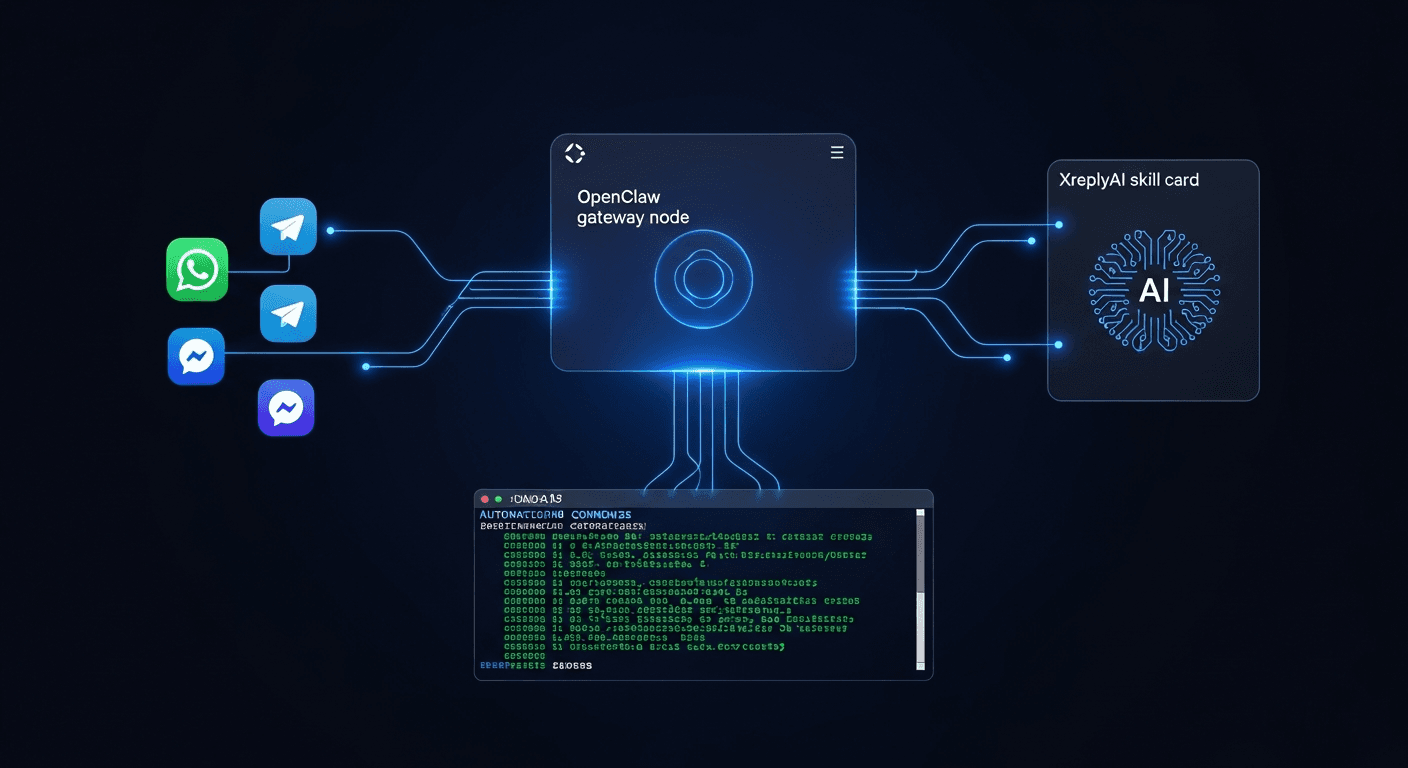
If you read our explainer on OpenClaw, you already know the concept: a self-hosted AI gateway that connects your chat apps and terminals to AI-powered Skills, with your API keys staying on your own server. The question now is what you can actually do with it. This post covers one specific answer: connecting XreplyAI as an OpenClaw Skill and putting your X presence on autopilot.
XreplyAI already runs as a Chrome extension for in-browser reply generation. OpenClaw takes it further. Once you install the XreplyAI skill on your gateway, you can trigger the same voice-matched, context-aware reply generation from Claude Desktop, from a terminal script, from a Slack message, from anywhere that speaks MCP. No browser required.
This walkthrough is hands-on. By the end you will have the skill installed, at least one workflow running, and a clear picture of what else is possible.
OpenClaw is a gateway, not a standalone tool. It sits between your AI clients (Claude Desktop, Cursor, a terminal script) and external services like XreplyAI. When you install a Skill, OpenClaw exposes that service as a set of MCP tools your clients can call directly.
For XreplyAI, that means capabilities like generating a reply to a specific tweet, drafting a thread from a topic, scheduling a post, or pulling engagement data are all callable as structured tool calls. You describe what you want in plain language, your AI client figures out which tool to invoke, OpenClaw routes it to XreplyAI, and the result comes back inline.
The practical benefit: you stop context-switching. Instead of opening a browser tab, navigating to a tweet, clicking the extension, and copying the output, you stay in whatever environment you are already working in. If you are writing in Claude Desktop, you draft the reply there. If you are running a morning script, it fires the reply generation alongside everything else.
Your XreplyAI API key lives on your OpenClaw server. Nothing is passed through a third-party relay. That matters if you are managing multiple accounts or running this for clients.
Start with a running OpenClaw instance. If you have not set that up yet, the OpenClaw overview covers the initial deployment steps. You need the gateway running and accessible before adding skills.
Once you are in the OpenClaw dashboard, navigate to the Skills section and search for XreplyAI. Click Install. You will be prompted for your XreplyAI API key: paste it in, save, and the skill activates immediately. No restart required.
From the Skills panel, you can verify the installation by clicking the skill card and reviewing the available tools. For XreplyAI you should see tools for reply generation, thread drafting, voice profile selection, and post scheduling. If any are missing, check that your XreplyAI plan includes the corresponding features.
The last configuration step is connecting your X account through XreplyAI's OAuth flow. OpenClaw stores the token on your server. After that, every tool call the skill makes is authenticated against your actual X account.
This is the workflow most people reach for first. Open Claude Desktop, drop in a tweet URL, and ask for a reply. Claude Desktop calls the XreplyAI skill via OpenClaw, the skill fetches the tweet context, applies your voice profile, and returns a reply draft. You review it and post.
A typical prompt looks like this: "Generate a reply to https://x.com/someone/status/123 in my default voice. Keep it under 200 characters and focus on the technical angle." Claude interprets the intent, calls the right tool with the right parameters, and the reply appears in your chat window.
You can iterate from there. Ask it to make the reply shorter, more direct, or to add a specific point. Each iteration is a new tool call. Because XreplyAI understands voice profiles, the output stays consistent with your established tone across iterations.
This workflow works best for high-value replies where you want to think before posting. It removes the friction of switching contexts without removing the human review step.
If you have a consistent morning routine around X, the terminal workflow saves real time. The idea is a script that runs on a schedule, checks notifications or a saved search, generates draft replies or a daily thread, and drops everything into a review queue or posts directly.
With OpenClaw running locally, you can call MCP tools from any script that supports HTTP. A minimal Python or shell script can hit the OpenClaw endpoint, pass in a list of tweet URLs from your notifications, and collect generated replies for each one. Run it with cron at 8am, review the output over coffee, then post what looks good.
For accounts where you have high confidence in your voice profile, you can go further and post directly from the script. Set a threshold: if the generated reply is under a certain length and matches the requested tone, publish it automatically. Flag anything outside those bounds for manual review.
This is not a set-it-and-forget-it situation. You still need to check what gets posted, especially early on. But once your voice profile is dialed in across a few hundred replies, the accuracy rate climbs and the review burden drops.
Thread drafting is where the gateway approach pays off more than the extension. In a browser, you draft one reply at a time. In Claude Desktop with OpenClaw, you can hand it a block of raw notes or a research summary and ask for a full thread in your voice.
The process: write your notes in the chat, specify the angle and target length, and call the XreplyAI thread tool. The skill structures the content into tweet-sized chunks, applies your voice profile to each one, and returns the full thread as an ordered list. You edit inline, then use the scheduling tool to queue it.
Because the thread generation and scheduling both go through OpenClaw, you stay in one window from first draft to scheduled post. No copy-pasting between tools.
This workflow is especially useful for content you research in Claude: ask Claude to summarize a topic, then immediately ask XreplyAI to turn the summary into a thread. The context is already in the conversation. You are not re-explaining anything.
The first week with this setup is mostly calibration. Your voice profile improves with every reply you post or edit. OpenClaw logs the tool calls, so you can see which workflows you reach for most and tune from there.
After the first few hundred generations, the practical benefits compound. Reply generation gets faster as the profile stabilizes. Scripted workflows become more reliable. You start identifying new places to inject the skill: a Slack bot that drafts replies from link shares, a Raycast extension that generates a reply from the clipboard, a daily digest that surfaces engagement opportunities you would have missed.
OpenClaw's value here is that it decouples the capability from any specific interface. XreplyAI works wherever you can make an MCP call. That opens up integrations that are not possible with a browser extension alone, and it means you are not dependent on any one client staying compatible.
Start simple. One workflow, fully dialed in, beats five workflows half-configured. Pick the one that saves you the most time this week and build from there.
OpenClaw turns XreplyAI from a browser tool into a programmable capability you can call from anywhere. The installation takes about ten minutes. The first workflow takes another fifteen. After that, the time you save compounds every day.
If you are ready to set this up, start at xreplyai.com. Create your account, grab your API key, and follow the steps in this post. The OpenClaw skill will be waiting for you in the Skills directory.
FAQ
- Do I need the XreplyAI Chrome extension if I'm using OpenClaw?
- No. The OpenClaw skill and the Chrome extension are independent. The extension handles in-browser reply generation directly on x.com. The OpenClaw skill handles generation from external clients like Claude Desktop or terminal scripts. You can run both simultaneously or choose based on where you work.
- Is my X account token stored securely on OpenClaw?
- Yes. OAuth tokens are stored on your OpenClaw server, not on any third-party relay. Only your server and XreplyAI's API see the token. If you are self-hosting OpenClaw on your own infrastructure, you control the storage environment entirely.
- Can I use multiple X accounts through one OpenClaw instance?
- Yes. You can install the XreplyAI skill multiple times with different configurations, or use account-level parameters in your tool calls. The exact setup depends on your XreplyAI plan and how many accounts it supports. Check the skill documentation in the OpenClaw dashboard for specifics.
- What AI providers work with this setup?
- XreplyAI supports Gemini, ChatGPT, and Claude as generation backends. You configure the provider preference in XreplyAI, and the OpenClaw skill inherits that setting. The MCP client you use to call OpenClaw (Claude Desktop, Cursor, etc.) is separate from the provider XreplyAI uses to generate replies.
- How do I debug a tool call that returned an unexpected result?
- OpenClaw logs all tool calls with request and response payloads. Check the Logs section in the dashboard and filter by the XreplyAI skill. If the output looks wrong, compare the parameters that were passed against what you intended. Most issues come from the voice profile not yet matching your tone, which improves with more usage.