Generate and Schedule Tweets from Your Code Editor
You are deep in a build session. You just shipped a feature, hit an insight, or ran into something that would make a genuinely useful post. And then the tab-switching begins: browser, Twitter, blank compose box, context lost. By the time you get back to your editor, the thread you were following is gone.
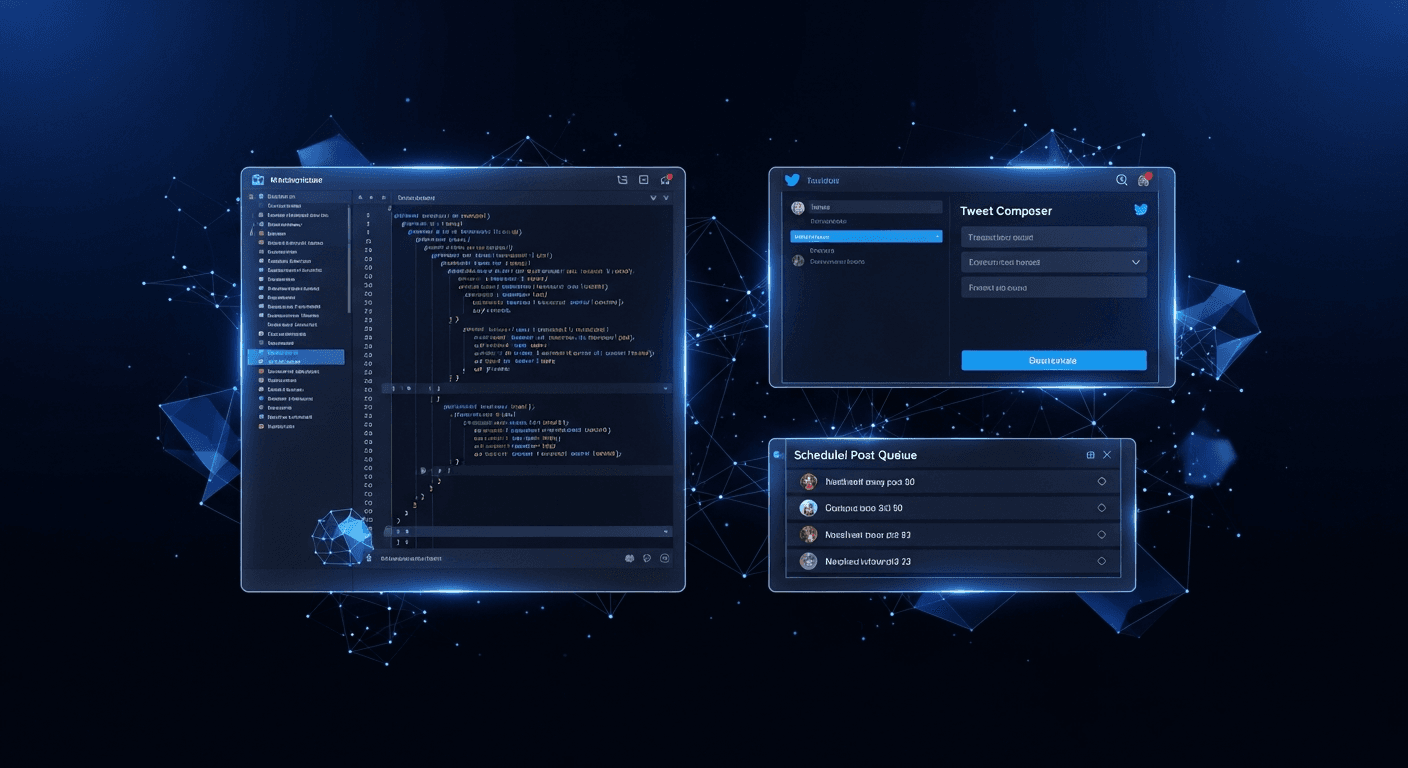
The XreplyAI MCP server removes that friction entirely. With tools like xreply_posts_generate, xreply_posts_edit, and xreply_posts_publish available directly in Claude Code, Cursor, or Windsurf, you can write, refine, and schedule a tweet in under two minutes without leaving your session. Posts come out in your voice, not generic AI prose, because the server trains on your existing tweet history.
This post covers two concrete workflows: a quick mid-session post when inspiration hits, and a weekly batch session where you generate a full week of content at once. If you have not set up the MCP server yet, start with the setup guide first, then come back here.
The Problem with Context Switching
Most developers who want to post consistently on X run into the same obstacle: the gap between having a thought worth sharing and actually sharing it is just wide enough to kill the habit. You have to stop what you are doing, open a browser, compose something, and then spend five minutes re-orienting when you return to your editor.
Research on deep work consistently shows that even brief interruptions, two minutes or less, can cost 15 to 20 minutes of re-focus time. For builders who live in a state of flow, this is not a minor inconvenience. It is the reason most posting habits die in week two.
The fix is not discipline. It is reducing the switching cost to near zero. When generating and scheduling a tweet takes the same cognitive load as running a quick terminal command, the habit sticks because it stops feeling like a separate task. That is what MCP tools make possible: the post lives in the same environment as the code, so the context never fully breaks.
This is the real value of xreply_posts_generate and the surrounding toolset. It is not that AI can write your tweets. It is that the workflow fits inside the environment you are already in.
Quick Mid-Session Workflow: Post in Under Two Minutes
This is the single-post workflow for when inspiration strikes during a build session. It takes under two minutes from thought to scheduled post.
Step one: ask your AI assistant to call xreply_posts_generate with a brief topic description. You do not need to write the tweet yourself: give it a sentence or two about what you want to share, specify an angle if you have one (more on angles below), and let it draft. The tool pulls from your trained voice profile, so the output should sound like something you would actually write.
Step two: read the draft. If it needs a tweak, ask the assistant to call xreply_posts_edit with your changes. This is a single round of editing, not a full rewrite cycle. In practice, you are usually adjusting one phrase or cutting a line, not rebuilding from scratch.
Step three: decide when to publish. If you want it to go out immediately, call xreply_posts_publish with no timestamp. If you want to schedule it, pass a scheduled_at value in ISO 8601 format: for example, 2026-03-14T14:00:00-05:00 for 2pm Eastern on March 14. The post is now queued and you are back in your editor. Total time: under two minutes if the draft is close.
The key discipline here is not overthinking it. The draft does not need to be perfect. You are editing AI output in your voice, not crafting from scratch. The bar for a quick mid-session post is: does this add something real? If yes, ship it.
Choosing Your Angle: story_arc, one_liner, list, question
When calling xreply_posts_generate or xreply_posts_generate_batch, you can specify an angle to shape the structure of the output. Getting this right makes the difference between a post that performs and one that gets skipped.
The story_arc angle works best for build-in-public content: you shipped something, learned something, or failed at something. The structure follows a before-and-after arc. It is the highest-engagement format for founder and developer audiences because it combines vulnerability with a concrete takeaway. Use it when you have a result to share, not just an opinion.
The one_liner angle is for sharp observations, counterintuitive takes, or punchline-style insights. These are the posts that get retweeted. They do not need much context because the entire value is in the single sentence. Use this when you have a specific, quotable thing to say and do not need to build to it.
The list angle structures content as numbered or bulleted items. It works well for how-to content, resource recommendations, and lessons learned. Readers know immediately what they are getting, and list posts tend to earn saves. Use it when you have multiple discrete points that stand on their own.
The question angle ends with or is structured around a prompt to the audience. It is the best format for generating replies and conversation. Use it when you want to hear from your audience, spark debate, or test an idea. Pair it with a specific, non-obvious question: generic questions get ignored.
Browsing Viral Content Before You Generate
One of the most underused tools in the MCP server is xreply_viral_library. Most people skip straight to generation, which means they are working without any signal about what is actually performing in their niche.
The viral library is a curated dataset of tweets that have crossed meaningful engagement thresholds, filterable by niche and keyword. When you pull from it before generating, you get two things: topic ideas you might not have thought of, and structural patterns from posts that have already proven they resonate.
The workflow is: call xreply_viral_library with a niche keyword relevant to what you are building, scan the results for hooks and formats, then use that context in your xreply_posts_generate or xreply_posts_generate_batch call. You might notice that list posts are outperforming narratives in your space this week, or that a specific question format is driving a lot of replies. That context shapes better generation output.
This step adds two to three minutes to a batch session and meaningfully improves the quality of what comes out. Skipping it means generating in a vacuum. Using it means generating with real signal. For a weekly batch, it is always worth the time.
Weekly Batch Workflow: Generate a Week of Posts at Once
The daily post habit is powerful. The weekly batch is more efficient. At the end of a work session on Friday, or the start of one on Monday, you spend 15 to 20 minutes generating and scheduling five to seven posts for the coming week. You do not think about content again until the following batch session.
Start with xreply_viral_library to calibrate what is resonating in your niche before you write a word. Pull the top posts from the past week, scan them for topic gaps and engagement patterns, and use that as input context for generation. You are not copying these posts: you are building posts that fit into a live conversation.
Then call xreply_posts_generate_batch with a count of five to seven and a mix of angles. A good weekly spread: two story_arc posts anchored in what you shipped that week, one list post with lessons or resources, one question to drive replies, and one or two one_liner observations you have been sitting on.
Review the batch with xreply_posts_list to see all drafts in one place. Edit any that need work with xreply_posts_edit, delete the ones that do not land, and publish the keepers with xreply_posts_publish, staggering them across the week using scheduled_at timestamps. Morning slots, roughly 9am to 11am in your primary audience timezone, tend to outperform afternoon posts for developer and founder audiences. The whole session takes about 20 minutes. Your content calendar is set for the week.
Voice Profile: Why Posts Sound Like You
The reason this workflow produces posts worth reading rather than generic AI filler is the voice profile. XreplyAI trains a model on your existing tweets to capture your patterns: how you structure sentences, the vocabulary you use, whether you lean toward data or storytelling, how often you use humor, your typical post length.
When xreply_posts_generate runs, it generates against that profile, not against a generic instruction to write a tweet. The output is not perfect on the first try, but it is a first draft that sounds like you on a good day. Your edits are refinements, not rewrites.
You can check your voice profile status at any time by asking your assistant to call xreply_voice_status. If you have been posting more lately and want the profile to reflect your recent style, you can trigger a retrain from the XreplyAI dashboard. The more tweet history the profile has to train on, the more precise the output becomes.
This is the part of the workflow that compounds over time. The more you use it, the better the drafts get, and the faster the editing step goes. What starts at two minutes per post often drops to under a minute once the profile has enough history and you have calibrated your editing instincts.
The two-minute mid-session post and the 20-minute weekly batch are both achievable today with the XreplyAI MCP server. You stay in your editor, posts come out in your voice, and the context switching that kills most posting habits is eliminated. Over weeks and months, a consistent posting cadence compounds into visibility, relationships, and opportunities that are hard to build any other way.
If you are already set up, try the batch workflow at the end of your next work session. Generate five posts, schedule them across the week, and see what it feels like to have your content calendar handled before the week starts. If you are not set up yet, start at xreplyai.com and get the server running first.
FAQ
- Do I need to be a developer to use the XreplyAI MCP server for tweets?
- You need to be comfortable with a code editor that supports MCP, like Claude Code, Cursor, or Windsurf, and you need to have completed the initial setup. Once the server is configured, generating and scheduling tweets is conversational: you ask your AI assistant to call the tools in plain language. No coding required beyond the one-time setup.
- What is the scheduled_at format for scheduling a tweet?
- The <code>xreply_posts_publish</code> tool accepts <code>scheduled_at</code> as an ISO 8601 datetime string with timezone offset. For example, <code>2026-03-14T10:00:00-05:00</code> schedules a post for 10am Eastern on March 14. If you omit <code>scheduled_at</code>, the post publishes immediately.
- How many posts can I generate in a batch?
- <code>xreply_posts_generate_batch</code> supports between 1 and 9 posts per call. For a weekly batch, generating 5 to 7 posts in a single call is the most efficient approach. You can then review, edit, and schedule each one before publishing.
- Will the generated posts sound like me or like generic AI?
- Generated posts are built against your voice profile, which is trained on your existing tweet history. The output reflects your sentence structure, vocabulary, and tone. The profile improves as it accumulates more training data, and you can check its status at any time with <code>xreply_voice_status</code>.
- Can I use this workflow in Cursor or Windsurf, not just Claude Code?
- Yes. The <code>@xreplyai/mcp</code> server works with any MCP-compatible editor, including Cursor and Windsurf. The setup process is similar across clients: add the server configuration with your authentication token, restart the editor, and the tools are available. The specific config file location varies by editor.