How XreplyAI Onboarding Works: From Install to First AI Reply in 5 Minutes
We just shipped a new full-tab onboarding wizard that walks every new user through setup in four clear steps. Here's exactly what happens — and why each step exists.
Why onboarding matters for an AI reply tool
Most Chrome extensions drop you into a popup with zero context. You click around, nothing works the way you expect, and you uninstall within 10 minutes.
XreplyAI has a few moving parts that new users need to understand before the product clicks: the extension needs to know something about how you write, and your reply preferences shape every output. Without a structured setup path, users either miss these steps or get confused by them.
The new onboarding wizard solves this with a focused, full-tab experience that opens automatically the first time you log in. It walks you through four steps in a fixed sequence, with the option to skip anything optional, and closes when you're done — dropping you directly onto X, ready to reply.
The goal
Get every new user to their first AI-generated reply in under 5 minutes, with a voice profile and preferences already set — so the first reply actually sounds like them.
Step 1 — Choose your voice profile
The first step presents a grid of voice presets — pre-built writing style profiles like Analytical, Witty, Concise, or Storyteller. Each card shows the preset name and a short description of what it produces.
Selecting a preset applies it as your starting voice profile. This gives the AI a personality baseline to work from immediately, even before you've uploaded any of your own tweets.
If you want to skip this step entirely, there's a Skip for now button that moves you forward without applying any preset. The AI will still generate replies — it just won't have a style baseline beyond what it can infer from the tweet you're replying to.
Presets are loaded dynamically from the backend, so the list will grow over time as we add more writing styles based on user feedback.
Step 2 — Upload your Twitter archive (optional)
This is the most powerful setup step, and also the most optional. If you upload your Twitter data archive, XreplyAI analyzes your past tweets to build a custom voice profile specific to you — your sentence length, your vocabulary, your humor, your typical structure.
The upload experience on this step is a drag-and-drop area that accepts a tweets.js file from your Twitter archive (up to 50 MB). The file is read in the browser, sent to the backend for analysis, and a voice profile is returned — usually in under 30 seconds for a typical archive.
How to get your Twitter archive:
- Go to Settings & Support → Settings → Your Account on X (Twitter)
- Click Download an archive of your data
- Request the archive and wait for the email (usually a few minutes to a few hours)
- Unzip the download and find
data/tweets.js - Drag that file into the upload area on Step 2
If you don't have your archive handy, click Skip — I'll do this later. You can upload it anytime from the extension's Settings page. Skipping doesn't block you from using XreplyAI — you'll just be working from a voice preset until the archive is in.
Why this matters
The difference between a generic AI reply and one that actually sounds like you is the voice profile. Users who upload an archive report that replies feel more natural and require less editing before posting.
Step 3 — Set your reply preferences
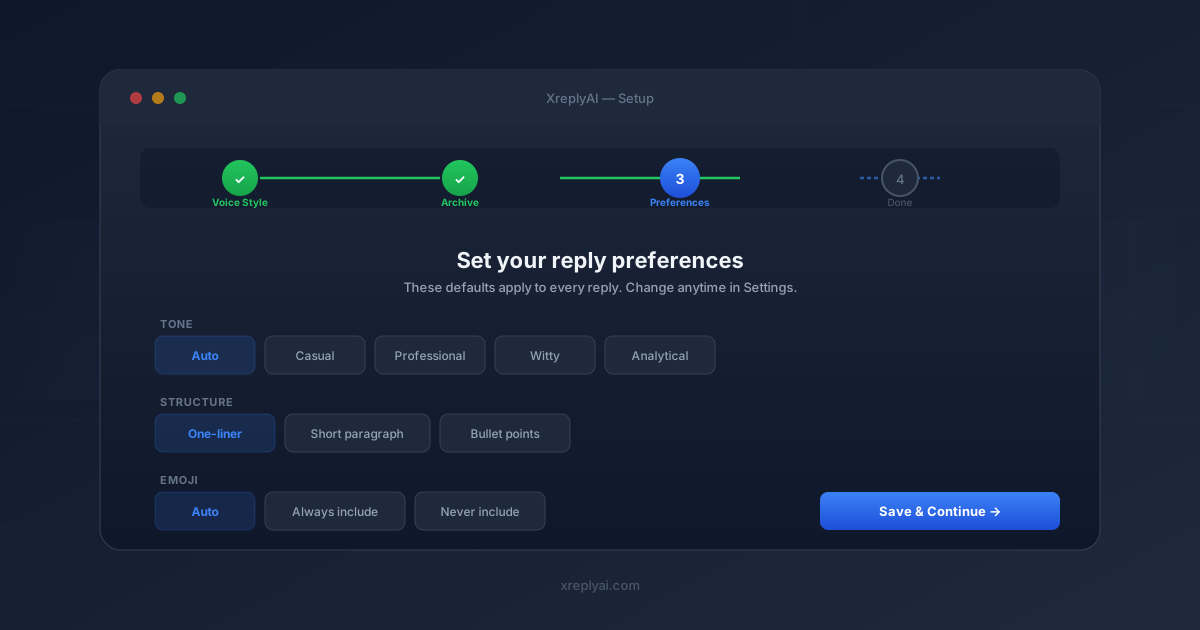
Step 3 is where you dial in how you want replies structured. There are three preference groups, each with clickable option cards:
Tone
- Auto — the AI matches the tone of the tweet you're replying to
- Casual — relaxed, conversational
- Professional — more formal and measured
- Witty — light, clever, with a sense of humor
- Analytical — data-oriented and precise
Structure
- One-liner — a single punchy sentence (default)
- Short paragraph — two to four sentences with a clear point
- Bullet points — structured list format, great for analytical replies
Emoji
- Auto — the AI decides based on tone and context
- Always include — every reply gets at least one emoji
- Never include — clean text only
These defaults are saved to both local storage and the backend. They apply to every reply you generate until you change them. You can update them anytime from Settings, or override them on a per-reply basis from the popup.
Step 4 — Review and go
The final step is a confirmation summary. It shows:
- The voice profile you selected (or "Default" if you skipped)
- Archive status — how many tweets were analyzed, or "skipped"
- Your chosen tone and structure preferences
When you click Open X and start replying →, two things happen simultaneously: a new tab opens to x.com, and the onboarding tab closes. The extension marks onboarding as completed in chrome.storage so the wizard never appears again.
From that point, every tweet reply box on X shows a Generate AI Reply button. Click it, get a draft in your voice, edit if needed, post.
Design decisions behind the wizard
A few choices in the onboarding flow are worth explaining, because they reflect how we think about the product:
Full-tab, not in-popup
Chrome extension popups are tiny and close if you click anywhere else. An onboarding flow that requires focus — especially one with a file upload — belongs in a full tab. The wizard opens as a dedicated browser tab so you can complete it without accidentally dismissing it.
Everything is optional except login
Every step except login can be skipped. Voice preset, archive upload, even preferences — all of it has a "skip" escape hatch. We don't want setup friction to be a reason someone gives up before generating their first reply. You can configure everything in Settings after the fact.
Onboarding completes exactly once
The onboarding_completed flag is set in chrome.storage when you finish Step 4. It's deliberately preserved across logout and login cycles — so you only ever see the wizard once, even if you switch accounts. This avoids the frustrating experience of re-doing setup after a routine logout.
Auto-advance after archive upload
When the archive finishes uploading, the success message appears, then the wizard automatically moves to Step 3 after a 1.2-second pause. This removes one button click and keeps momentum. Users who upload the archive are already bought in; the last thing they need is another "continue" prompt.
Preferences sync locally first
When you save preferences on Step 3, they're written to chrome.storage immediately, then synced to the backend. If the backend call fails (no internet, server issue), your preferences still work locally — and you get a non-blocking warning rather than a hard error. The extension is usable even if the backend is temporarily unreachable.
Ready to try the new onboarding?
Install XreplyAI and the wizard opens automatically on first login. Free trial, cancel anytime.
Try XreplyAI free →FAQ
- How long does XreplyAI onboarding take?
- Most users complete all 4 steps in under 5 minutes. The only step that can take longer is uploading a Twitter archive for voice analysis — but that step is optional and can be skipped and done later from Settings.
- Do I have to upload my Twitter archive?
- No, the Twitter archive upload is optional. You can skip it during onboarding and upload it later from the extension's Settings page. If you skip it, XreplyAI will still generate replies — it just won't have a deep model of your specific writing style until you upload the archive.
- What is a voice preset in XreplyAI?
- Voice presets are pre-built writing style profiles — like "Analytical", "Witty", or "Concise" — that give the AI a starting point for matching your tone. They're useful if you're new or haven't uploaded a Twitter archive yet. Once you upload an archive, XreplyAI builds a custom voice profile from your actual tweets.
- What reply preferences can I set during onboarding?
- You can set three preferences: Tone (auto, casual, professional, witty, or analytical), Structure (one-liner, short paragraph, or bullet points), and Emoji usage (auto, always include, or never include). All three can be changed anytime from Settings.
- Does XreplyAI onboarding only run once?
- Yes. The onboarding wizard opens automatically the first time you log in. After you complete it (or reach the final step), it won't open again. Your settings are saved in chrome.storage so they persist across browser restarts.
- Which AI providers does XreplyAI support?
- XreplyAI runs on Google Gemini, OpenAI (ChatGPT), and Anthropic (Claude) models. AI is included in your subscription — there are no API keys to create or manage.
- What happens if I log out — do I have to redo onboarding?
- No. The onboarding_completed flag is preserved across logout and login cycles, so you'll never see the wizard again after completing it once, even if you log out and back in.